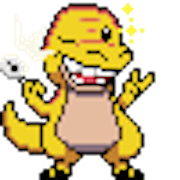
Feeding is the calm half of looking after a desktop pet. This is the other half: you hand your pet an object, and it does something ridiculous with it.
How to play with a pet
- Open the Pets Interactions window and flip the switch at the top from Food to Actions.
- Pick a pet. Its toys appear in a tray along the bottom.
- Drag a toy onto it. The pet plays the matching animation for about six seconds, then goes back to whatever it was doing.
What the pets actually do
The toy and the animation are a matched pair — the object you drag is the one that appears in the pet's hands. A few favourites:
🦁 Lion
Takes a deep breath and roars.
🦖 T-Rex
Breathes an actual fireball.
🐼 Panda
Ignites a lightsaber.
🐬 Dolphin
Jumps through a hoop.
🦙 Llama
Takes a selfie.
🐧 Penguin
Belly-slides across your desktop.
🦝 Raccoon
Raids the bin, obviously.
🦉 Owl
Delivers a letter.
In total there are 57 different animations across the library — backflips, skateboarding, boxing, dancing, hypnotising, playing guitar, swimming, reading a book, wielding a samurai sword.
The toys belong to the pet
Like food, toys are species-specific — each one is drawn for the animal that uses it, and a pet will only accept its own. Drag the wrong item over and you'll be told which pet it belongs to.
Most pets have one toy. The cats have four each: a hammer, a helmet, a phone call and a heart — so a single cat has four different things it can be talked into doing.
All of it is free
Playing, like feeding, costs nothing and isn't hidden behind a setting. It works the same on macOS, Windows and Linux.
More ways your pets act on their own
Toys are the deliberate kind of interaction. There's also the ambient kind: your pets strike up conversations with each other when they meet, and quietly rack up achievements as they go.