
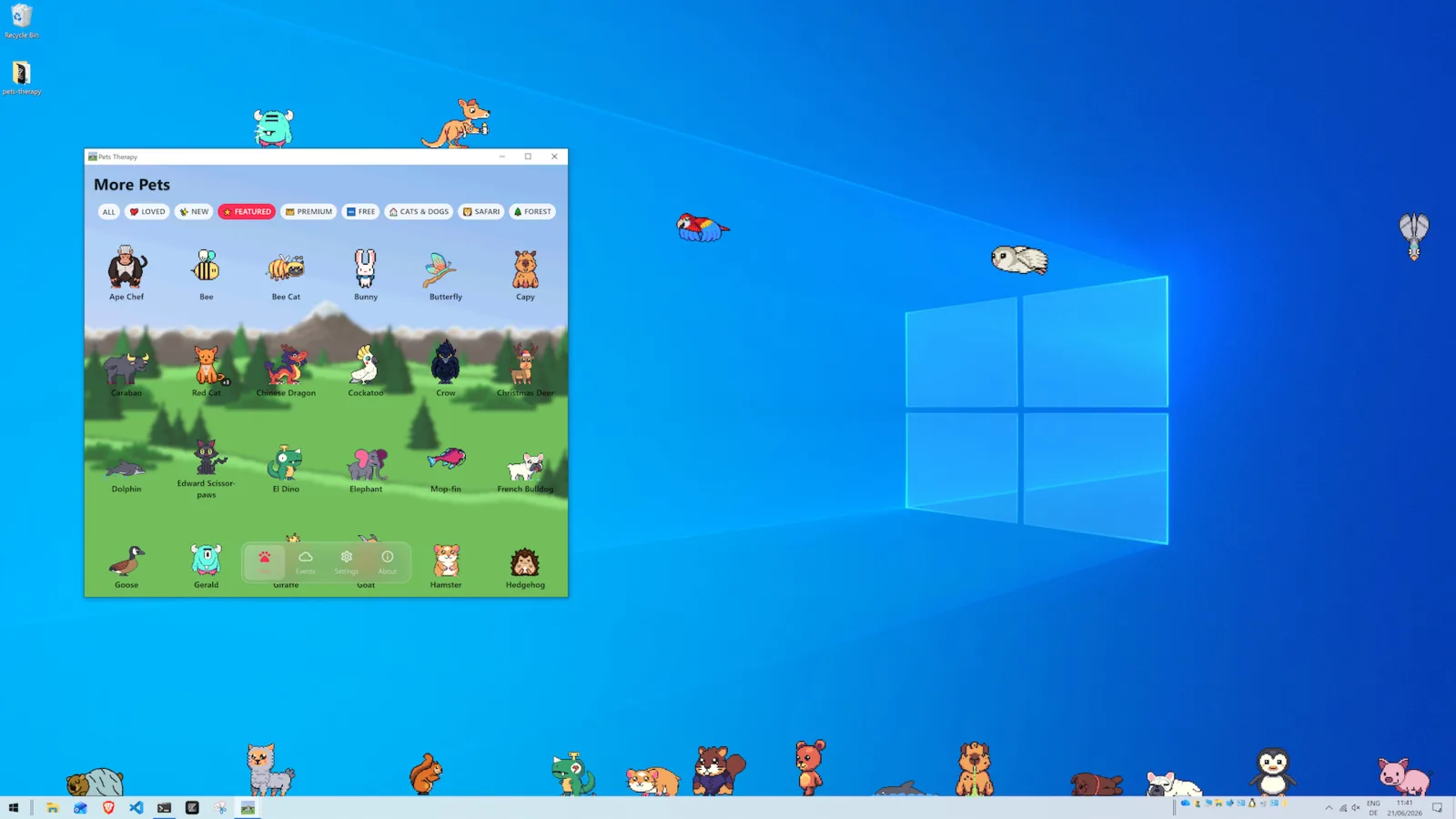
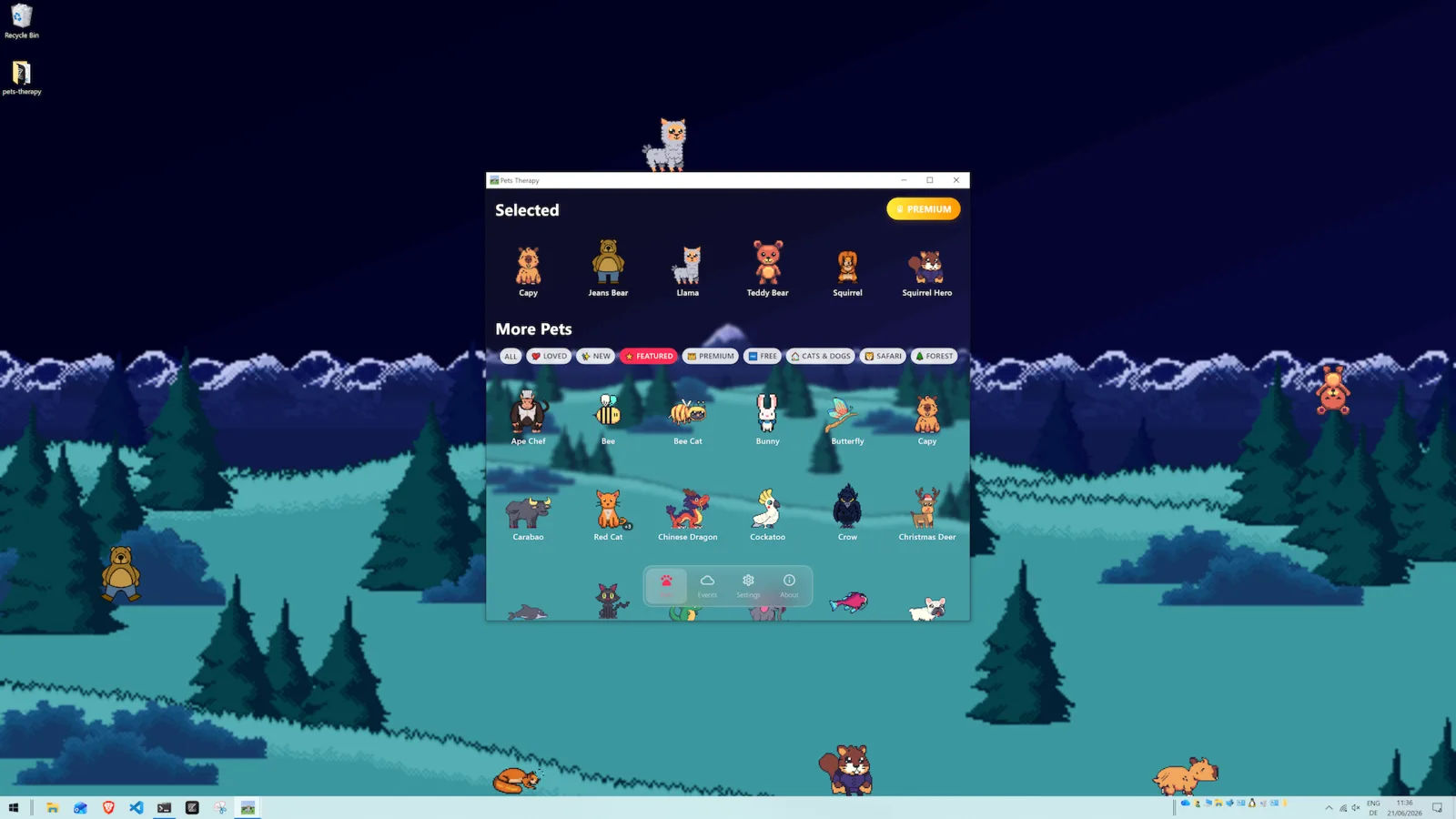
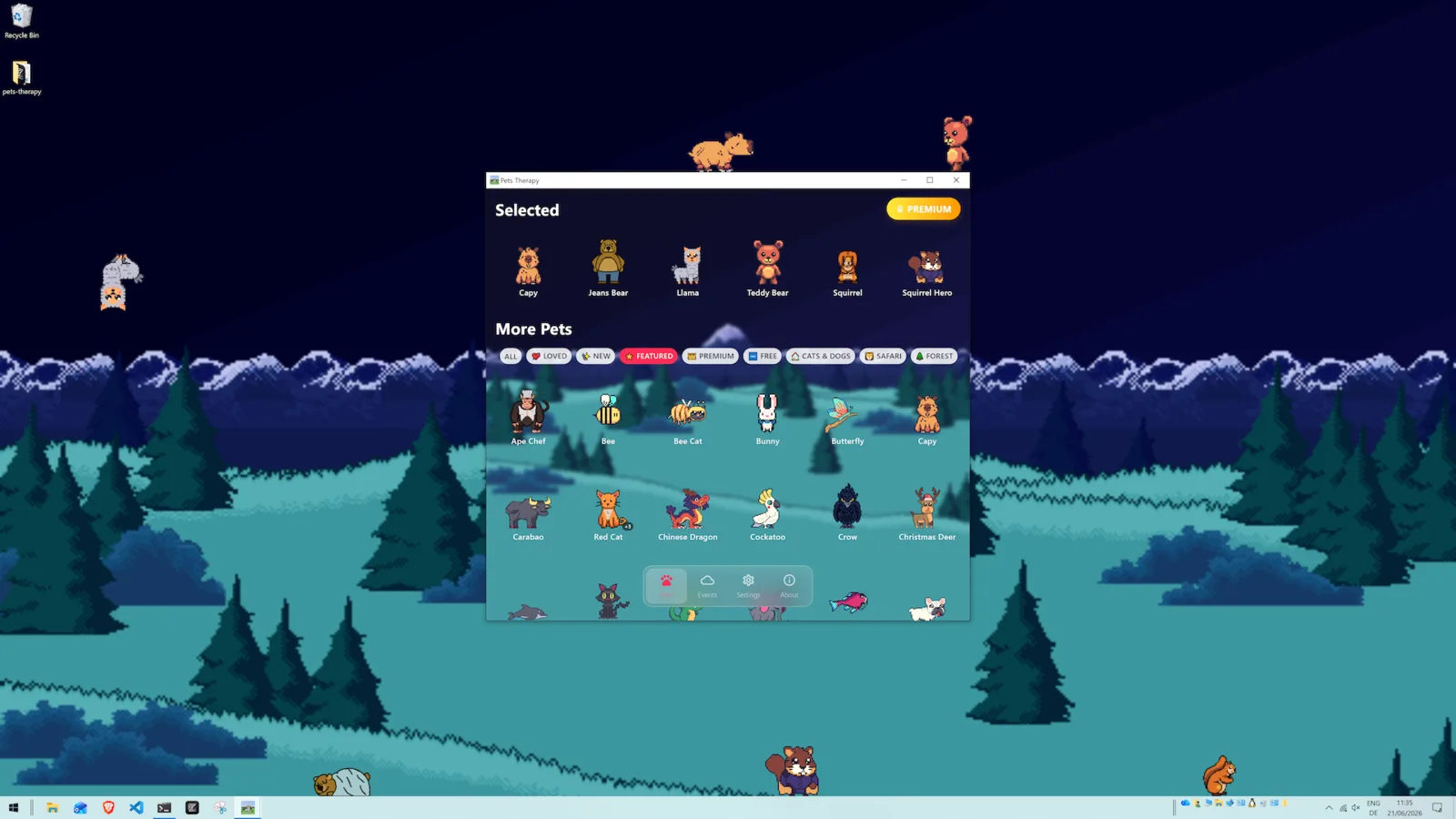
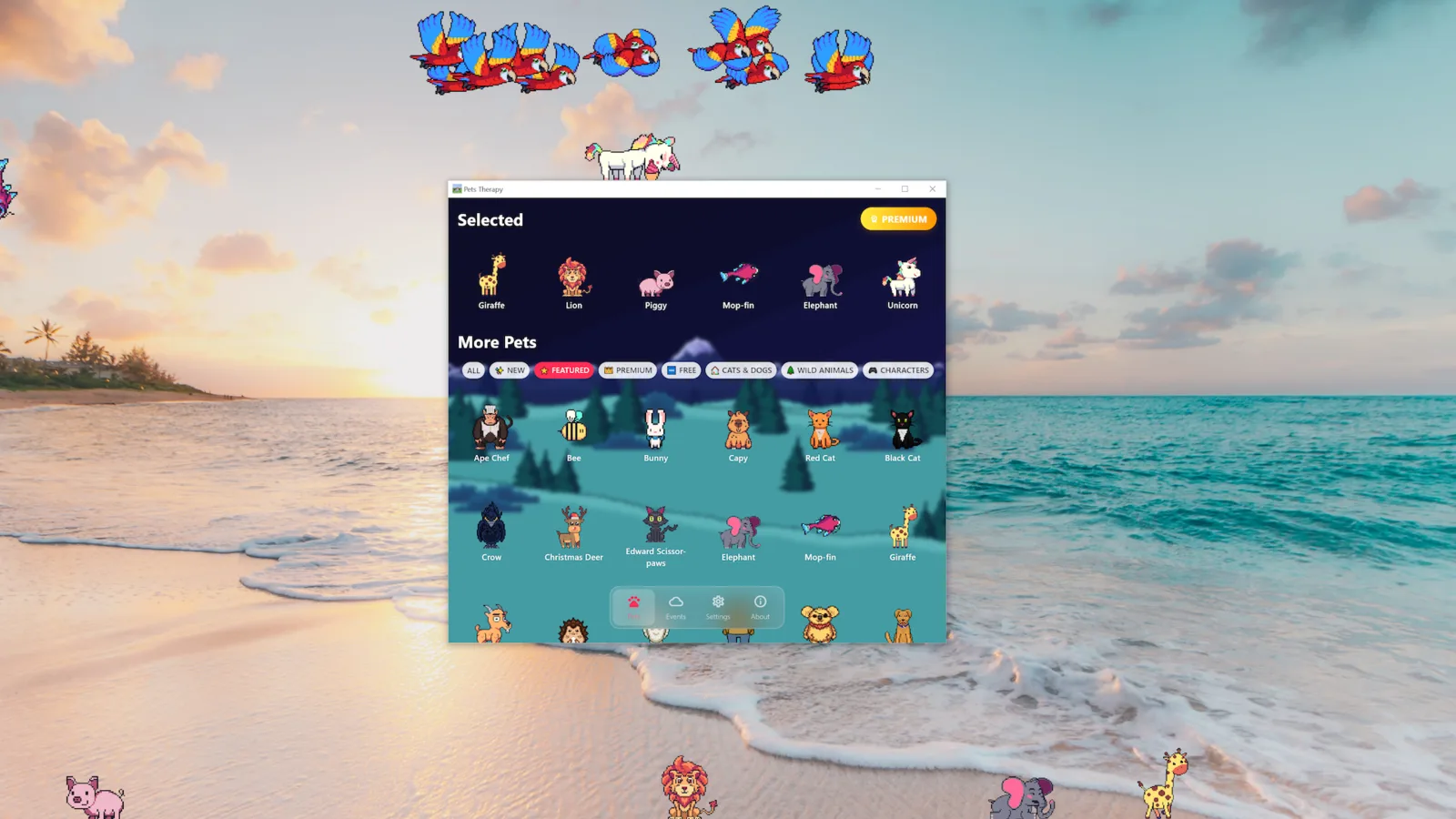
Desktop pets — little animated buddies that live on your screen — are one of the most charming ways to personalize a Windows PC. This page covers the best way to get them running, what to expect, and answers the common questions.
Why Pets Therapy on Windows
- 100+ pets included — 37 of them free forever; no hunting for downloads.
- Multi-monitor support — pets roam across all your displays, not just the primary one.
- Custom pets — add your own characters via the
PetsAssets/Speciesfolders or the in-app tools. - Free on the Microsoft Store or Steam — one-click install, automatic updates, no sketchy downloads.
- Random events — occasional surprises like weather and UFOs drift across your desktop.
Feed them and play with them on Windows
Every interaction feature ships on Windows. Drag food onto any of the 87 pets that have their own, hand them one of 132 toys, or right-click to have them eat, sleep, relax or cuddle — all free. When two pets meet they stop for a conversation. See feeding, toys and the desktop Tamagotchi overview.
How to install desktop pets on Windows
Pets Therapy is available on both the Microsoft Store and Steam — pick whichever platform you prefer, both are free and get the same pet library and updates.
- Open the Pets Therapy listing on the Microsoft Store or the Pets Therapy page on Steam.
- Click Get / Install (or Play on Steam).
- Launch the app — your first pet appears on the desktop immediately.
- Open the pet menu to add more pets, adjust size and speed, or enable multiple displays.
What's free on Windows
"Free" here means free, not a trial — there's no countdown, no ads and no account. Specifically, at no cost you get:
- 37 pets, each with its own walk, idle and sleep animations.
- Unlimited custom pets — import your own sprites; this isn't behind a paid tier.
- Multi-monitor support across every display you enable.
- 3 random events (weather, UFO, teleportation portals).
- Full size, speed and behaviour controls, in all 19 languages.
An optional subscription or one-time lifetime purchase adds 66 more pets, many more random events and automatic pet rotation — but nothing free is ever removed. Full breakdown on the free desktop pets page.
Windows alternatives worth knowing
Pets Therapy is our top pick, but if you want something different: Shimeji-ee is great for anime character packs, and Desktop Goose is a comedy prank pet rather than a calm companion. See our full best desktop pets apps comparison and Shimeji alternatives guide.
FAQ
Are desktop pets free on Windows?
Yes, and not just as a trial. 37 pets are free forever, along with unlimited custom pets, multi-monitor support and 3 random events — no time limit, no ads, no account. The optional upgrade adds 66 more pets, many more events and automatic pet rotation. See the full free breakdown.
Do desktop pets slow down my PC?
They use a small amount of resources while animating, but Pets Therapy is designed to stay lightweight during normal use. You can reduce the number of active pets any time.
Are they safe to install?
Installing from the official Microsoft Store or Steam means the app is sandboxed and vetted — much safer than random executables from unknown sites.
Is Pets Therapy available on Steam?
Yes. Pets Therapy is available on Steam for Windows, in addition to the Microsoft Store version — both are free with the same pets and updates.